Utility Bill Population (UBP) Integration
Utility Bill Population (UBP) is a managed service that automatically retrieves and imports utility bills into Energy Manager on your organization's behalf. Utility Bill Population (UBP) supports two key areas: the Bill Import Pipeline and the Utility Bill Gaps report. This helps in using UBP-specific fields directly during import to give you more accurate bill matching and richer tools to identify and resolve billing gaps.
Prerequisite:
All UBP features described in this article are only active when the Utility Bill Population checkbox is enabled for your organization.
To verify if it is enabled/disabled:
-
Go to Organization Setup → General Info.
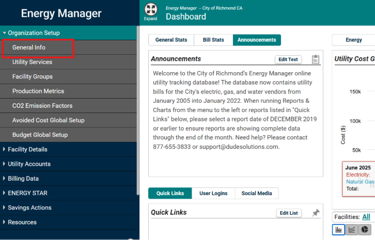
-
Click the Features tab and confirm Utility Bill Population is checked.
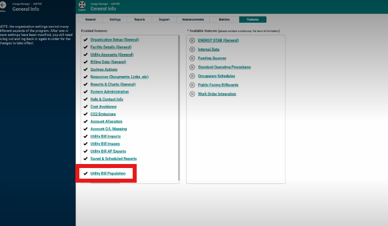
Part 1: Bill Import - UBP Field Support
Three UBP-specific fields UBP Vendor Code, UBP Account Number, and UBP Meter Name are now wired into the bill import process. This decouples the client-facing account number from the UBP-facing account number. A client can update their Energy Manager account number without breaking the UBP connection or halting bill processing.
Step 1: Configure UBP fields on an account
-
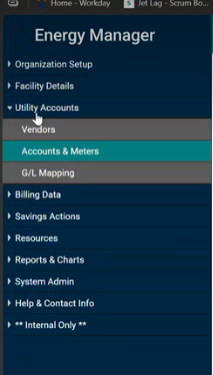
Go to Utility Accounts in the side navigation.
-
Click the Accounts and Meters option from the dropdown and navigate to the page.
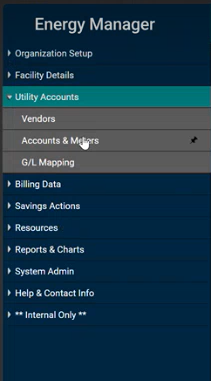
-
Open the relevant account record.
In the General tab:
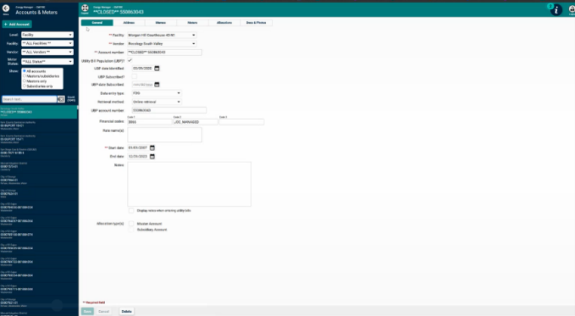
-
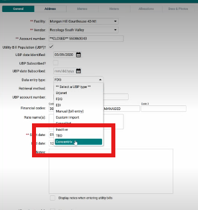
In the Data Entry Type field, select the data partner delivering bills for this account. Supported partners now include Concentrix in addition to existing options.
-
Enter or update the UBP Account Number. It is the identifier your data partner uses to match incoming bills to this account.
-
Enter or update the UBP Vendor Code that corresponds to the data partner.
In the Meters tab:
-
Go to the Meters tab in the same account.
-
Click the relevant meter.
-
Enter the UBP Meter Name as provided by your data partner.
-
Click Save.
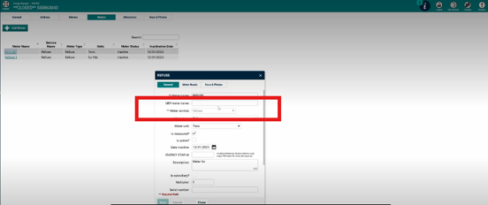
NOTE The UBP Account Number is used exclusively by the UBP data pipeline for bill matching. It can differ from the account's standard account number in Energy Manager. Always keep the UBP Account Number accurate, if it is wrong, incoming bills will not be matched and gaps will occur
Step 2: Edit a vendor code
-
Go to Vendors.
-
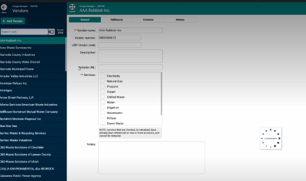
Open the relevant vendor record.
-
Update the Vendor Code as needed and Save.
Step 3: Add UBP columns to the Bill Import
UBP-related columns can now be added to your bill import column structure for CSV or Excel imports. This feature will provide ability to add columns to the import structure.
-
Go to Billing Data > Bill Import from the side navigation.
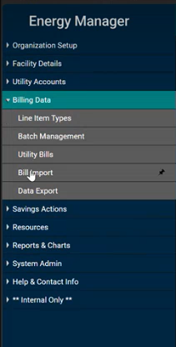
-
Open the Column tab and click Add Column.
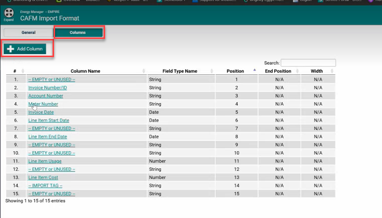
-
The Add new column dropdown now includes UBP-related columns.
-
Select the UBP columns you want to include in your import definition and click Save.
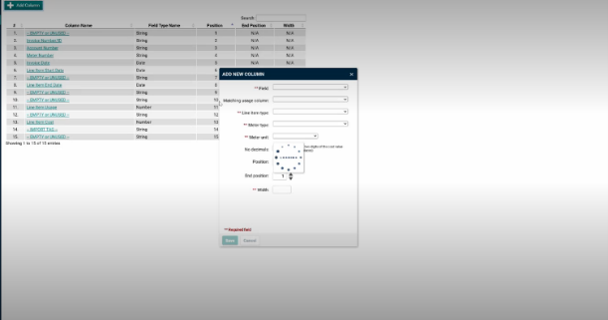
NOTE When importing via CSV, use a comma (,) as the delimiter for UBP fields.
Step 4: Structured Data Import
For setting up UBP fields across a large number of accounts at once:
-
Navigate to Internal Only → Structured Data Imports → Import Accounts.
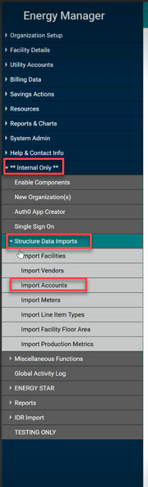
-
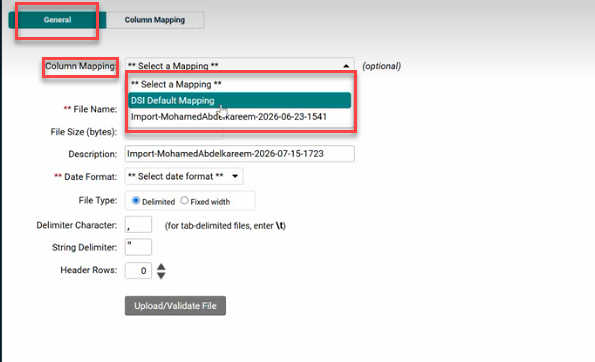
Open the import definition and in the General tab.
-
Click the Column Mapping drop-down.
-
Select the Default - Accounts (UBP) column mapping template.
-
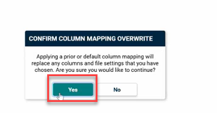
A popup will appear, click Yes.
NOTE This option is only visible when Utility Bill Population is enabled for your organization.
-
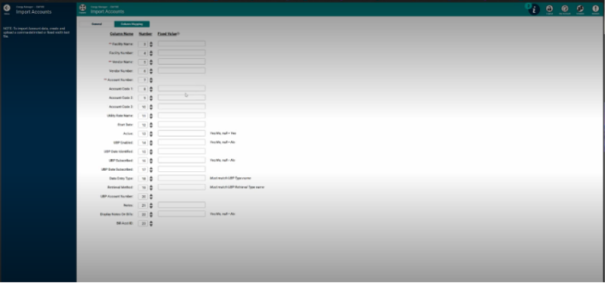
Go to the Column Mapping tab, there are different column mapping view.
-
UBP fields are also available for column mapping. Map UBP Account Number, UBP Meter Name, and UBP Vendor Code to the appropriate incoming columns.
-
Save and run the import as normal.
-
Prepare your import file using the following UBP column structure (positions 14–20):
Position Column Example Value 14 UBP Enabled? Yes 15 UBP Date Identified 4/27/2026 16 UBP Subscribed? Yes 17 UBP Date Subscribed 1/1/2026 18 Data Entry Type XX 19 Retrieval Method Online retrieval 20 UBP Account Number XXXXXX -
Click Upload/Validate File, review any validation errors, correct your file, and re-upload.
Validation rules
The system enforces the following rules to protect data integrity. Rows that fail validation are rejected with a clear error message identifying the problem field
|
Condition |
Required field |
Behaviour if missing |
| UBP Enabled = Yes | UBP Date Identified | Row rejected, does not default |
| UBP Enabled = Yes | UBP Account Number | Row rejected, does not default to standard account number |
| UBP Subscribed = Yes | UBP Date Subscribed | Row rejected, does not default |
UBP Date Identified — the date UBP was turned on for the account (effectively the purchase date).
UBP Date Subscribed — the team's responsibility start date. This can be backdated — for example, if a client purchases two years of historical data, the subscribed date may be set two years before the purchase date.
NOTE Dates are not defaulted because incorrect values may require manually updating hundreds of records.
How UBP Matching Works during Import?
When an incoming bill is processed, the system uses UBP fields for matching before falling back to standard fields:
|
Field |
Match found? |
What happens |
|
UBP Account Number |
Match found |
Standard account number is ignored; UBP Account Number takes precedence |
|
UBP Meter Name |
Match found |
Standard meter name is ignored; UBP Meter Name takes precedence |
| UBP Meter Name |
No match + Create New Meters enabled |
A new meter is created automatically; both UBP Meter Name and Meter Name are set to the incoming UBP Meter Name value |
Supported data partners
The Brightly Managed Services team can now identify the specific data partner delivering bills for each account. Supported partners are:
|
Partner |
Description |
|
Urjanet |
Third-party utility data aggregator |
|
Concentrix |
Managed bill collection partner (newly added) |
|
Self Perform |
Client retrieves and provides bills directly |
|
Online Access |
System retrieves bills via online portal |
Part 2: Utility Bill Gaps Report — New Filters & Columns
The Utility Bill Gaps report helps you identify accounts where expected utility bill data is missing. This report adds multi-select support on existing filters, a new dedicated UBP filter section, and five additional UBP-specific columns in the report output.
Accessing the report
-
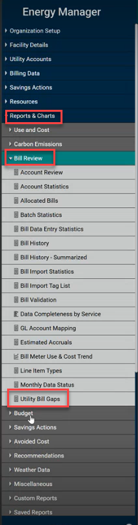
Go to Reports and Charts.
-
Click the Bill Review drop and select Utility Bill Gaps.
Multi-select filters
The following filter dropdowns now support selecting multiple values at once, consistent with the existing multi-select behaviour on the Facilities filter:
-
Vendor - select one or more vendors to filter results
-
Service - select one or more service types
-
Account - select one or more specific accounts
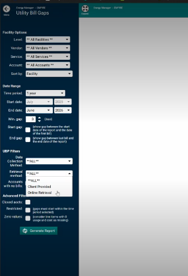
How to use multi-select:
-
On the Utility Bill Gaps page, click the Vendor, Service, or Account dropdown.
-
Click Selected to enable multi-select mode.
-
Choose the values you want to include and click Generate Reports.
-
Apply the same approach to any combination of filters before generating the report.
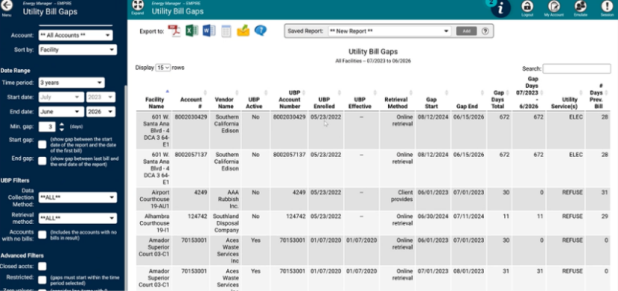
New UBP filter section
A dedicated UBP Filters group is now available in the filter panel:
|
Filter |
Options |
Default |
|
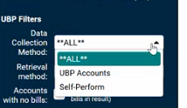
Data Collection Method |
All | UBP Accounts | Self-Perform |
All |
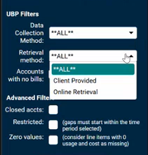
| Retrieval Method | All | Client Provided | Online Retrieval |
All |
| Accounts with no bills | Checkbox, when checked, includes accounts with zero bills in results |
Unchecked |
-
In the filter panel, locate the UBP Filters section.
-
In Data Collection Method, select UBP Accounts to focus on UBP-managed accounts or self-performed accounts, or All.
-
In Retrieval Method, select Client Provided or Online Retrieval or All to filter how bills are collected.
-
Check Accounts with no bills to include accounts that have zero bill records in the results.
-
Click Generate to run the report with the applied filters.
New report columns
Five new UBP columns are now included in the report output once it is generated:
|
Column |
What it shows |
|
UBP Active |
Whether the account is currently active for UBP (Yes / No) |
|
UBP Account Number |
The UBP-specific account number for the record |
|
UBP Enrolled |
Enrollment status and the date the account was enrolled in UBP |
|
UBP Effective |
Effective status and the date UBP became effective for the account |
|
Retrieval Method |
How bills are retrieved — Online Retrieval or Client Provided |
-
These columns are populated from the UBP data configured on the Accounts & Meters page. Keep UBP fields up to date on each account for accurate report output.
-
The UBP pipeline handles data delivery only. What users are permitted to see and do inside Energy Manager continues to be managed by Energy Manager permissions, independently of UBP.
-
If your organization changes its data partner, update the Data Entry Type and UBP Account Number on each affected account before the next import cycle.
Using gap dates with UBP Effective date: The report shows gap start and end date columns alongside the new UBP columns. Compare the gap date range against the UBP Effective date to determine whether the managed services team is responsible for a gap. If the gap predates the UBP Effective date, it falls outside the team's scope.
NOTE An account is UBP Active only when both UBP Enabled and UBP Subscribed are checked. If either is unchecked, the account is inactive. Unchecking UBP Subscribed while leaving UBP Enabled on preserves all UBP fields for visibility without marking the account as active, it is useful when UBP service is paused and may be resumed later.
